Home / Blog / CSV to List: How to Convert Rows Step by Step
CSV to List: How to Convert Rows Step by Step
ProfessionLens, 2026-11-16
You've downloaded a CSV and need a usable list of license numbers, company names, or contacts. The first few rows look fine after conversion, but an organization name has become separate items, an address has broken across lines, or identifiers have lost their leading zeros.
The difficult part of CSV to list conversion isn't adding commas or brackets. It's deciding what constitutes a record, which column you need, and what to do when a row doesn't match the expected structure. Start with those decisions, and the formatting becomes straightforward.
Table of Contents
- Choosing the Right CSV to List Method
- How to Convert CSV Rows to a List in Python
- Converting Large Files Without Running Out of Memory
- Building the List in Excel or Google Sheets
- Protecting Spreadsheet Users From Formula Injection
- Errors and Validation Checks Before You Trust the List
Choosing the Right CSV to List Method
| Method | Best for | Handles quoted commas | Setup effort |
|---|---|---|---|
| Excel Data then From Text/CSV | One-off conversion of one column | Yes | Low |
| Google Sheets with TEXTJOIN | Joining a column into one comma-separated cell | Yes, on import | Low |
| Python csv module | Repeatable conversion with validation and output | Yes | Medium |
| pandas read_csv | Typed filtering on large or wide files | Yes | Medium |
| Shell cut or awk | Quick checks on files with no quoted fields | No, splits on every comma | Low |
The quoting column matters because an ordinary delimiter split treats the comma within an organization name such as Smith, Jones & Co. as a column boundary, even when the field is quoted.
Before choosing a tool, define what you mean by list. A Python list of complete rows, a column of identifiers, and a comma-separated spreadsheet cell are different outputs. They aren't interchangeable when values contain punctuation or line breaks.
Match the method to the destination
Choose Excel when you need to inspect a column and copy its values somewhere else. Choose Google Sheets when you're collaborating on a small, reviewable file or joining imported cells for pasting into a form.
Use Python's csv module when the conversion needs explicit rules and repeatable results. It's a good default for identifiers because you can preserve text, check headers, and report rejected records without introducing a dataframe.
Choose pandas when filtering and column operations account for most of the work. Loading a wide table to extract an untouched column adds complexity that the standard CSV reader avoids.
Practical rule: If the file contains quoted fields, or the conversion will run repeatedly, skip delimiter-based
cutandawkcommands.
For an inspected, simple file, shell tools can answer a quick question. They shouldn't become an unattended converter merely because the first output looked plausible. Pick the route that supports your validation requirements, not just the shortest command.
How to Convert CSV Rows to a List in Python
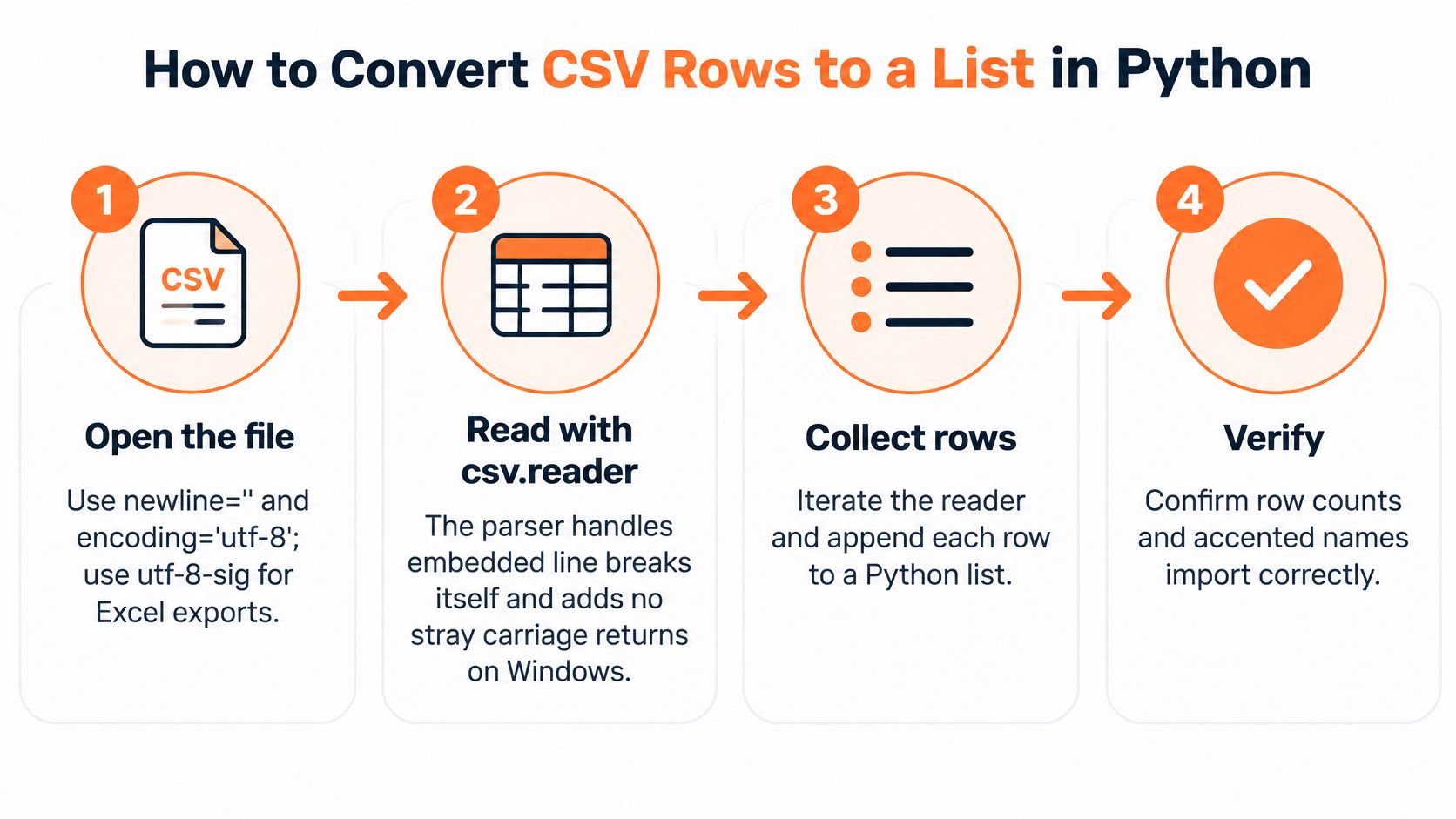
Use csv.DictReader for a named column and csv.reader for complete rows. The Python CSV documentation specifies opening files with newline='', allowing the parser to manage newline handling rather than relying on ordinary text-line processing.
Read and validate before collecting values
Open the file explicitly. Use
with open(path, newline='', encoding='utf-8') as f:so encoding and newline handling aren't left to machine defaults. For an Excel-exported file with a UTF-8 byte-order mark, useutf-8-sig; don't assume every Excel export uses UTF-8.Create the reader with
reader = csv.DictReader(f, strict=True). Addressingrow['license_number']by header name keeps the selection stable when the supplier rearranges columns.Check headers before iteration. Read
reader.fieldnames, requirelicense_number, and reject duplicate header names. Stop with a clear error instead of returning an empty list that looks like a successful conversion.Inspect each record's shape before extracting its value. Extra fields appear under the default
Nonekey inDictReader, while missing fields receiveNonevalues, so test for both.
A fail-fast implementation looks like this:
import csv

values = []

with open(path, newline='', encoding='utf-8-sig') as f:
    reader = csv.DictReader(f, strict=True)
    headers = reader.fieldnames

    if not headers or 'license_number' not in headers:
        raise ValueError('Missing required header: license_number')
    if len(headers) != len(set(headers)):
        raise ValueError('Duplicate column headers')

    for record_number, row in enumerate(reader, start=1):
        if None in row or any(value is None for value in row.values()):
            raise ValueError(
                f'Unexpected field count in data record {record_number}'
            )

        value = row['license_number'].strip()
        if value:
            values.append(value)
Choose the output policy
Decide whether to retain duplicates and blanks. This implementation strips outer whitespace, drops values that are empty after stripping, and retains duplicates in source order. Don't deduplicate license numbers until you know whether repeated identifiers represent legitimate records.
Write the validated values to the destination. For identifiers that cannot contain line breaks, open an output file with an explicit encoding and use
out.writelines(value + '\n' for value in values).
For already validated rows, the compact expression is [row['license_number'].strip() for row in reader if row.get('license_number')]. However, its condition excludes empty strings, not whitespace-only strings: a spaces-only value passes the condition and becomes an empty string after stripping.
If you need complete rows, rows = list(csv.reader(f)) produces a list of row lists, including the header when present. Keep extraction inside the open-file context, and don't turn multiline values into a one-value-per-line text file unless you've defined how their internal newlines will be represented.
Converting Large Files Without Running Out of Memory
list(reader) loads every parsed row into memory. Streaming iteration processes one record at a time, and it only saves memory if nothing downstream accumulates the full output in a second list.
That distinction matters when selecting a narrow column from a wide file. Discarding unwanted fields immediately keeps the working set small, but the retained strings and their list references still grow with row count and can exceed the source CSV's byte size. If the destination accepts incremental writes, send it validated records directly or flush bounded batches of a few thousand rows at a time.
Reserve pandas for typed transformations
Pandas earns its memory when you need column selection, typed filters, or joins. Loading a dataframe and then calling .tolist() holds both representations at once: the column array inside the dataframe and the new Python list built from it. Select only the columns you need, declare text dtypes for identifiers so leading zeros survive, and use chunksize when the full table isn't required:
chunks = pd.read_csv(
    'licenses.csv',
    usecols=['license_number'],
    dtype={'license_number': 'string'},
    chunksize=100_000,
)
values = [
    value
    for chunk in chunks
    for value in chunk['license_number'].dropna()
]
Each chunk is parsed, reduced to the retained column, and released before the next one loads. Peak memory tracks the chunk size rather than the file size.
Parser configuration affects speed as well. The pandas read_csv reference documents that separators longer than one character, apart from supported whitespace syntax, are treated as regular expressions and force the slower Python engine. A plain comma stays on the fast path; a multi-character delimiter doesn't.
A generator doesn't solve a memory problem if its consumer immediately converts everything into a list.
Speed is the wrong first question anyway. A naive line.split(',') will often outrun a real parser, right up until a quoted field containing a comma turns one company name into two list entries. The result is a plausible-looking list, off by a few rows, wrong in ways a quick row count won't catch. Validate the schema first, then tune throughput.
Benchmark representative row widths, quoting frequency, encoding, null density, and storage medium. Measure rows per second and peak memory, including validation and output writing, rather than timing only the parser.
Building the List in Excel or Google Sheets
Spreadsheet conversion works well when you need to inspect the values before using them. Keep the imported source on a separate sheet so cleanup doesn't erase your reference copy.
Import first, then format the list
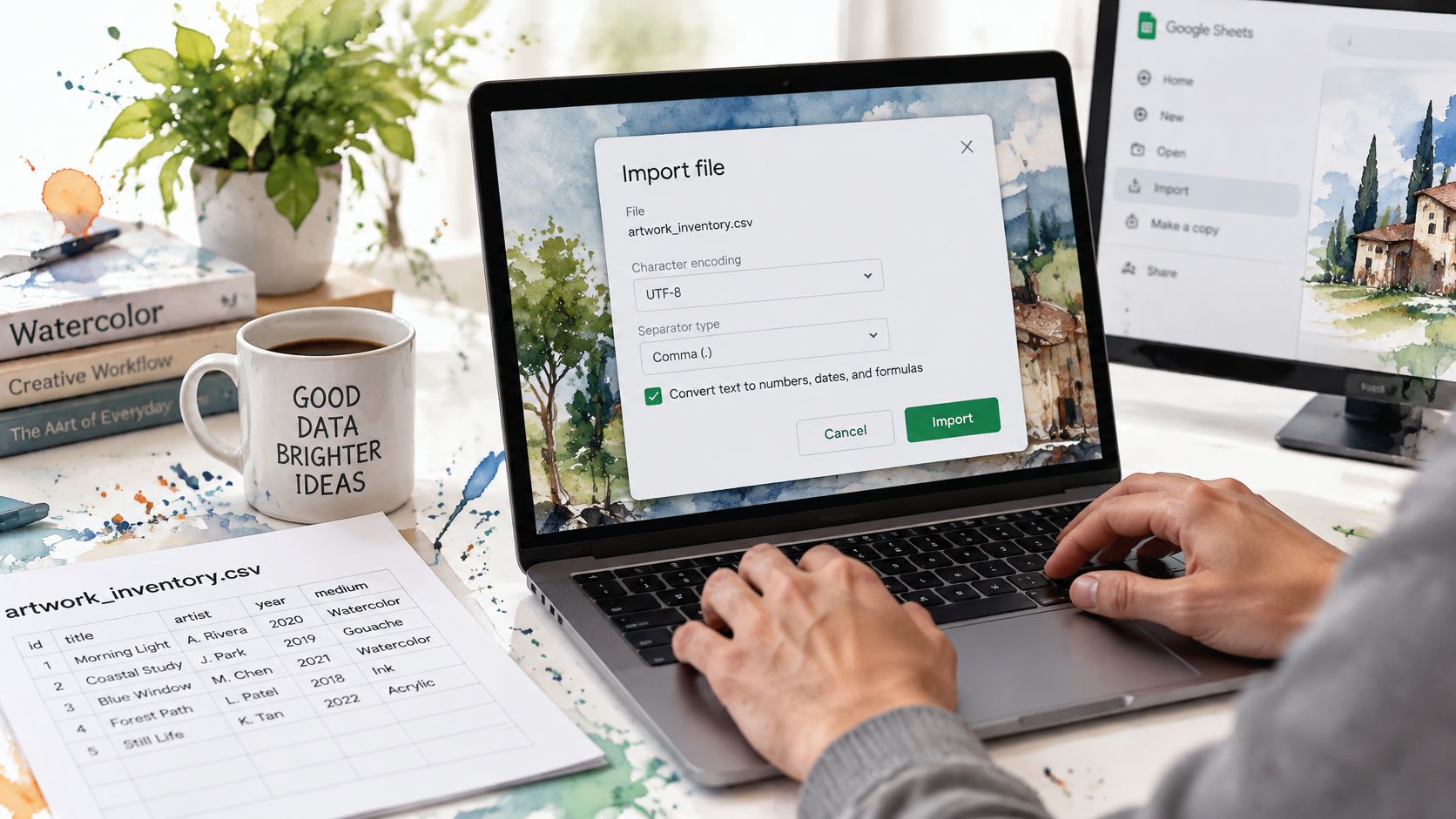
Import through the application's CSV workflow. In Excel, choose Data, then From Text/CSV; in Google Sheets, use File, then Import. In Excel's preview, select the correct encoding, including UTF-8 when that matches the export and accented names otherwise look wrong.
Confirm that the delimiter is comma and inspect representative cells before accepting the import. Set identifier columns to text where import controls allow it, so leading zeros aren't treated as disposable numeric formatting.
Check the imported boundaries. An organization name containing punctuation should occupy its intended cell, and an address containing an internal line break should remain within a cell. Don't repair misplaced values manually until you've checked whether the import settings caused the problem.
For a comma-separated cell, enter
=TEXTJOIN(", ", TRUE, A2:A500)in an empty helper cell, replacing the example range with your actual data range.TRUEskips blank cells; it doesn't automatically clean whitespace or remove duplicates.Use the same
TEXTJOINformula in Excel versions that support it. Exclude the header, inspect the result, and paste as values if the destination should receive text rather than a live formula.For a one-value-per-line list, keep a column. Copy the cleaned values, use Remove Duplicates only when your policy calls for it, and paste into the destination without joining them first.
Decide between a joined cell and a working column
A joined cell is convenient for a destination that explicitly accepts comma-separated text. It isn't a lossless CSV export when individual values themselves contain commas, and very long results are better kept as columns or exported rather than forced into a cell.
For recurring transfers between operational files, Spreadsheet Upgrade's guidance on keeping order and finance workbooks consistent provides useful context for treating record movement as a controlled workflow.
Compare the imported nonblank count with the retained output count, accounting for deliberate exclusions. Choose a single joined line for pasting, or a column for sorting, filtering, and review.
Protecting Spreadsheet Users From Formula Injection
Choose the destination policy before changing source values. A Python list or database import generally needs value preservation plus validation; an export that people will open in a spreadsheet may need a separate protective transformation.
OWASP's CSV injection guidance identifies risks when spreadsheet software interprets untrusted values beginning with characters such as =, +, -, or @ as formulas. CSV quoting isn't a reliable defense against that interpretation.

Separate preservation from spreadsheet display
Offer a lossless data mode that keeps source values unchanged, and a safe spreadsheet export mode with an explicit, tested escaping policy. Don't overwrite the source dataset with display-oriented edits.
- Flag suspicious cells. Inspect every exported field for formula-triggering prefixes, including cases affected by leading control characters or normalization.
- Apply the chosen escaping or prefix policy to flagged values. An apostrophe prefix is a possible application-specific measure, not a universal guarantee across spreadsheet programs and round trips.
- Log each transformation with its record identifier, column, original value, and exported value. Protect that log according to the sensitivity of the underlying records.
- Open the generated file in the target spreadsheet application and verify that flagged cells remain inert. Test the actual distribution format, not just the Python object before export.
- Tell recipients that the spreadsheet-safe version may display or store values differently from the lossless source.
A leading minus sign might be legitimate data, so flagging and transforming aren't the same decision. Preserve a traceable original rather than stripping characters without notice.
Review downloaded professional or contact datasets before distribution, particularly externally supplied names, notes, employer fields, and URLs. The goal is a usable export with documented changes, not indiscriminate alteration of every unusual value.
Errors and Validation Checks Before You Trust the List
A naïve comma split can produce convincing output from the wrong boundaries. A record containing a quoted organization name with an internal comma may yield recognizable fragments while pushing its location or identifier into the wrong position.
The CSV format specification permits commas, line breaks, and doubled quotation marks inside quoted fields, and describes consistent field counts across records. That makes schema validation more important than whether the result resembles a list.
In workforce analysis, a shifted county value can invalidate a geographic total. A damaged identifier can prevent a join, while a dropped record can change a count without causing an exception.
Diagnose the symptom before editing values
Symptoms, causes and fixes when converting CSV to a list
| Symptom | Likely cause | Fix |
|---|---|---|
| Values shifted into wrong columns | Splitting on commas inside quoted fields | Parse with csv.reader or DictReader, not str.split(',') |
| Address split over two list items | Embedded line break in a quoted field | Open with newline='' and pass the file to a CSV reader |
| Extra blank lines on Windows | Newline translation without newline='' |
Reopen with newline='' and the explicit encoding |
| Column names not found | Missing or misspelled header | Validate required headers before iterating |
| Rows with extra or missing fields | Trailing commas or broken records | Count fields per row and quarantine mismatches |
| Garbled accented characters | Wrong encoding on read | Set the correct explicit encoding, such as utf-8 or utf-8-sig for matching Excel exports |
Set a policy for headerless files before reading them. Supply known field names or use positional access against a documented schema; otherwise, DictReader consumes the first data record as the header.
Treat a trailing comma as a possible empty field, not harmless decoration. If the schema doesn't allow that field, quarantine the record instead of deleting punctuation until the row fits.
Alternate line endings should be handled through the parser. Keep the distinction between a logical record and a physical text line, because a valid record may span physical lines.
Validation standard: Every excluded record needs a reason, and every retained value needs an unambiguous source field.
Reconcile records and inspect difficult cases
Use a short acceptance checklist before releasing the output:
- Reconcile counts. Compare parsed source records with accepted records, quarantined records, and policy-based exclusions. Keep duplicate removals separate from structural failures.
- Verify the schema. Require the expected columns and reject duplicate header names. Confirm the delimiter, encoding, and null representation.
- Sample difficult values. Inspect organization names with commas, descriptions with embedded quotes, multiline addresses, and accented names. Compare them directly with parsed source values.
- Audit blanks and duplicates. Record how many values each cleanup rule removes. A deduplicated identifier list can be correct while no longer matching the source record count.
- Preserve evidence. Save rejected records with a reason and a source location. If malformed quoting prevents reliable recovery, stop and request a corrected file rather than guessing where the next record begins.
For concrete structures to inspect before conversion, use our CSV examples. Our research reports are at /research, each post links a CSV of its underlying rows, and the research datasets are also published on GitHub.
For a public-file dry run, the U.S. Census Bureau's December 2024 Household Pulse Survey public-use CSV was 13.4 MB. Use its documented fields to define a selection rather than assuming an unfamiliar file matches your production schema.
Run your chosen method on a sample file and compare the output count with the parsed source record count, accounting for every intentional exclusion, before converting the full file.
ProfessionLens publishes professional-workforce research with downloadable CSV rows you can inspect and convert into working lists. Visit ProfessionLens, choose a research report, and use its underlying CSV to practise a conversion with explicit header checks and reconciled record counts.